

MQTT: sending measurements to a broker and controlling from a computer
Goal
You will send measurements from the ESP32 to an MQTT broker, read them on your computer and control the LED by sending a message from the computer. You will learn about topics, retain and the Last Will. You will choose a broker: a public test one, or your own on a Raspberry Pi.
Parts you need
- the circuit from lessons 3-5 (LED on GPIO4, potentiometer on GPIO1, the
wifi.pyfile on the board) - a computer with a terminal (or the MQTT Explorer program), optionally a Raspberry Pi
6.1. How MQTT works
In HTTP (lesson 5) a client asks a server and gets an answer. In MQTT everyone connects to a single go-between, the broker:
- a publisher sends a message to a topic, e.g.
home/livingroom/temperature; - a subscriber signs up to topics and the broker passes it every new message;
- the ESP32 does not need to know the address of the computer or the phone. Everyone knows only the broker.
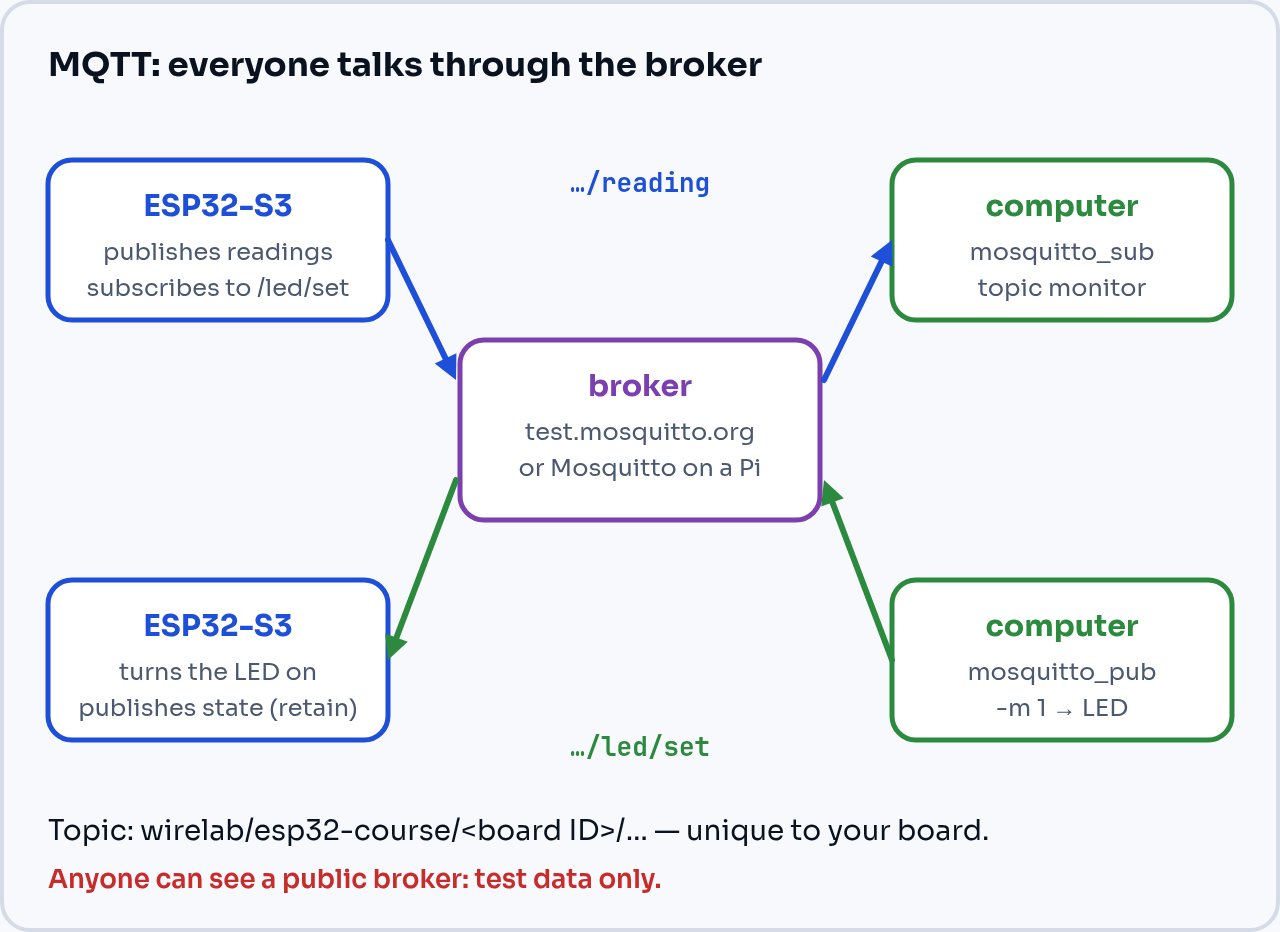
Fig. 6.1. The broker mediates in both directions. Nobody connects directly to the ESP32.
Topics are structured like directories separated by /. When subscribing you can use wildcards: + replaces one level (home/+/temperature), and # replaces all the levels to the end (home/#).
Two options we will use:
- retain: the broker remembers the last message on a topic and immediately sends it to every new subscriber (e.g. the current state of the LED);
- Last Will: a message that the broker publishes by itself if the ESP32 disappears without saying goodbye (e.g.
offlineafter the power is cut).
6.2. Choosing a broker
A. The public test broker test.mosquitto.org (port 1883). It works straight away, with no account.
🔒 Anyone can see a public broker. Anyone can read and send messages on your topics, and traffic on port 1883 is not encrypted. Send only test data there: no passwords, addresses, locations or data that reveals when you are at home. The broker is sometimes overloaded and there is no guarantee that it will work.
So that your messages do not get mixed up with other people's, the topic contains your board's number (machine.unique_id()), e.g. wirelab/esp32-course/a1b2c3d4e5f6/reading.
B. Your own Mosquitto broker on a Raspberry Pi on your home network: the data does not leave your home, and access is password-protected. On the Raspberry Pi (Raspberry Pi OS):
$ sudo apt install mosquitto mosquitto-clients
$ sudo mosquitto_passwd -c /etc/mosquitto/passwd esp32
$ sudo chown mosquitto:mosquitto /etc/mosquitto/passwd
$ sudo chmod 600 /etc/mosquitto/passwd
$ sudo nano /etc/mosquitto/conf.d/lan.conf
The contents of lan.conf:
listener 1883
allow_anonymous false
password_file /etc/mosquitto/passwd
$ sudo systemctl restart mosquitto
$ hostname -I
Since version 2.0, Mosquitto without a listener accepts connections only from the Raspberry Pi itself, and without a password it rejects clients. The last command shows the Raspberry Pi's IP address. Add three lines to wifi.py on the board (Thonny, as in lesson 5):
MQTT_HOST = "192.168.1.20"     # the Raspberry Pi's IP address
MQTT_USER = "esp32"
MQTT_PASSWORD = "password-from-mosquitto_passwd"
The programs in this lesson check for themselves whether these constants are in wifi.py. If they are not, they connect to test.mosquitto.org.
🔒 Do not forward port 1883 on your router. A broker without encryption should work only on your home network.
6.3. Monitoring on the computer
The Mosquitto command-line client: on Fedora sudo dnf install mosquitto, on Debian and Ubuntu sudo apt install mosquitto-clients, on Windows and macOS the installer from mosquitto.org. A graphical alternative: MQTT Explorer.
The program in 6.4 prints the monitoring command for you (with your topic). In general it looks like this:
$ mosquitto_sub -h test.mosquitto.org -t 'wirelab/esp32-course/YOUR_ID/#' -v
For your own broker add -h RPI_ADDRESS -u esp32 -P password.
6.4. Publishing measurements
import json, time, esp32, machine
from machine import ADC, Pin
from umqtt.simple import MQTTClient
import wifi

wifi.connect()
ID = machine.unique_id().hex()
BROKER = getattr(wifi, "MQTT_HOST", "test.mosquitto.org")
TOPIC = f"wirelab/esp32-course/{ID}/reading"

client = MQTTClient("esp32-" + ID, BROKER, keepalive=60,
                    user=getattr(wifi, "MQTT_USER", None),
                    password=getattr(wifi, "MQTT_PASSWORD", None))
client.connect()
print("Connected to broker", BROKER)
print(f"Monitor with: mosquitto_sub -h {BROKER} -t '{TOPIC}' -v")

pot = ADC(Pin(1), atten=ADC.ATTN_11DB)
try:
    for n in range(30):
        data = {
            "n": n,
            "voltage": round(pot.read_uv() / 1_000_000, 3),
            "chip_temp": esp32.mcu_temperature(),
        }
        client.publish(TOPIC, json.dumps(data))
        print("sent", data)
        time.sleep(5)
finally:
    client.disconnect()
Measurements in JSON format are easy for any program to read afterwards: Home Assistant, Node-RED or a Python script.
6.5. Controlling the LED from the computer
Now the ESP32 subscribes to the topic .../led/set and publishes the LED's state with the retain flag. The Last Will sets the status to offline when the board disappears.
import time, machine
from machine import Pin
from umqtt.simple import MQTTClient
import wifi

wifi.connect()
ID = machine.unique_id().hex()
BROKER = getattr(wifi, "MQTT_HOST", "test.mosquitto.org")
BASE = f"wirelab/esp32-course/{ID}"
led = Pin(4, Pin.OUT)


def message(topic, payload):
    print("received:", topic, payload)
    if payload in (b"1", b"on"):
        led.on()
    elif payload in (b"0", b"off"):
        led.off()
    client.publish(BASE + "/led", str(led.value()), retain=True)


client = MQTTClient("esp32-" + ID, BROKER, keepalive=60,
                    user=getattr(wifi, "MQTT_USER", None),
                    password=getattr(wifi, "MQTT_PASSWORD", None))
client.set_callback(message)
client.set_last_will(BASE + "/status", "offline", retain=True)
client.connect()
client.publish(BASE + "/status", "online", retain=True)
client.subscribe(BASE + "/led/set")
print("Send from your computer:")
print(f"  mosquitto_pub -h {BROKER} -t '{BASE}/led/set' -m 1")

last_ping = time.ticks_ms()
try:
    while True:
        client.check_msg()                  # checks for messages, does not block
        if time.ticks_diff(time.ticks_ms(), last_ping) > 30_000:
            client.ping()                   # keeps the connection alive (keepalive 60 s)
            last_ping = time.ticks_ms()
        time.sleep_ms(50)
finally:
    client.publish(BASE + "/status", "offline", retain=True)
    client.disconnect()
    led.off()
On your computer run mosquitto_sub with the topic .../# in one terminal, and mosquitto_pub with -m 1 and -m 0 in another. The LED switches, and you can see the new state in the monitor. Unplug the board from USB and wait about 1.5 minutes: the broker will publish offline by itself (the Last Will), because it stopped receiving the keep-alive signal.
6.6. QoS in brief
- QoS 0 (the default): "fire and forget". A message can get lost, e.g. when Wi-Fi drops.
- QoS 1: the broker confirms receipt and the sender retries until it succeeds. A message may arrive twice.
- QoS 2 (exactly once):
umqtt.simpledoes not support it.
For measurements sent every few seconds, QoS 0 is enough. You switch on QoS 1 like this: client.publish(topic, data, qos=1).
Common mistakes
OSError: -2or-202inconnect(): a wrong broker name, no internet or DNS.MQTTException: 5inconnect(): the broker rejected the login (a wrong password, orMQTT_USER/MQTT_PASSWORDmissing fromwifi.pywith your own broker).ECONNRESETafter a minute: noping()orcheck_msg()for longer than the keepalive. The broker decided the client was dead.- Two boards with the same
client_id: the broker disconnects the older one. That is whyunique_id()is in the name. mosquitto_subshows nothing: a typo in the topic (case matters), or the quotes were left out in the terminal around#.- Raspberry Pi:
Connection refused: nolistener 1883in the configuration (Mosquitto 2 then listens only locally), or the system firewall.
Exercises
- Add the Wi-Fi signal strength to the published data (
wlan.status("rssi");wifi.connect()returns thewlanobject). - Extend the program from 6.5 with a topic
.../rgb/setwith a payload such as255,0,40that sets the colour of the RGB LED from lesson 3. - Set up your own broker on a Raspberry Pi, add the details to
wifi.pyand check that the programs from 6.4 and 6.5 work unchanged. - Delete a retained message:
mosquitto_pub -t '<topic>' -r -nsends an empty message with retain.
Summary
MQTT connects devices through a broker: you publish to a topic and subscribers receive the message. umqtt.simple is built into MicroPython for the ESP32: connect(), publish(), subscribe() with set_callback(), and regular check_msg() and ping(). retain stores the last state, and the Last Will announces that a device has disappeared. The public broker is for tests only and anyone can see it; for real data use your own broker with a password on your home network.